How to Log Out of WhatsApp Without Losing Your Data or Chats
Published:
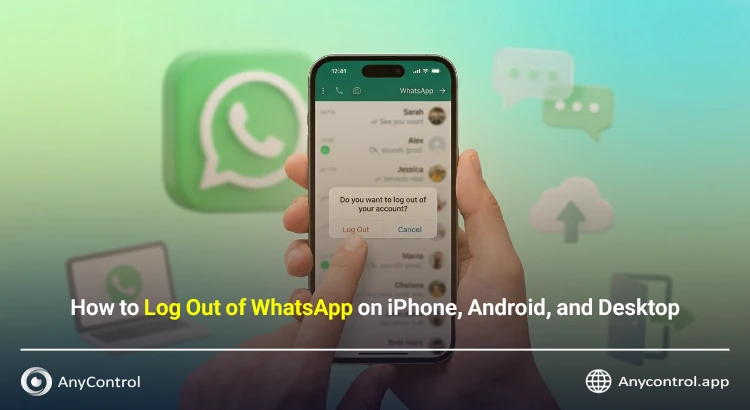
WhatsApp on iPhone and Android does not have a direct account logout button. To log out, on Android you need to clear the data, on iPhone you need to delete or Offload the app, and on WhatsApp Web use the Log out option.
Are you looking for a reliable way to log out of your WhatsApp account but no matter how hard you search, you cannot find the Log out button in the app?
Unlike apps such as Telegram or Instagram, Meta has not placed any direct button for logging out of an account in the mobile versions of WhatsApp. The reason for this is WhatsApp’s policy of keeping users always online and receiving messages without interruption.

Table of contents13 sections
Where Is the Log Out Button in WhatsApp?
If you have searched through all sections of WhatsApp settings to find an option to log out of WhatsApp on your phone, you should know that your search will be fruitless, because such an option does not exist by default in the mobile app!
The table below shows you the difference between logging out of WhatsApp and other apps:
|
Security / Usability Feature |
WhatsApp App |
Telegram / Instagram |
|
Direct Log Out button on mobile (Log Out) |
Does not have ❌ |
Has ✅ |
|
Log out from connected devices (Computer/Web) |
Has ✅ |
Has ✅ |
|
Log out without needing to delete app data |
No (requires workaround) |
Yes, easily |
Despite these software limitations, by using system-level workarounds such as clearing data on Android phones or temporarily deleting the app on iPhone, this barrier can be easily bypassed. In the following sections, we will fully examine these practical methods.
Always Back Up Your Chats Before Logging Out!
Before taking any action to log out of your WhatsApp account on iPhone or Android, make sure to back up your messages in WhatsApp so you can access your information again. Since logging out of the account requires completely clearing the app data, if you do not have an up-to-date backup, all your important text chats, photos, voice messages, and videos will be permanently lost and cannot be recovered.
Alternative Way to Switch Accounts in WhatsApp
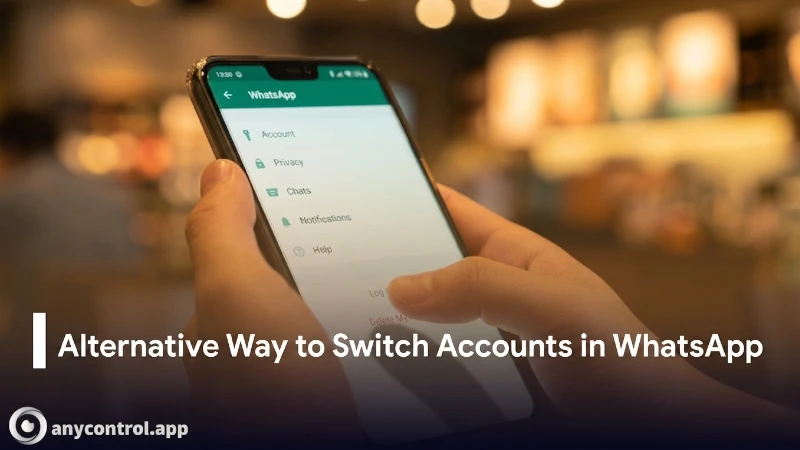
You may want to log out of WhatsApp to log into another account. In this case, one of the alternatives you can use instead of logging out methods is to use the add account feature in WhatsApp. With this method, you can have up to 3 accounts in one WhatsApp.
How to Log Out of WhatsApp on iPhone
The iOS operating system has many structural differences from Android. There is no option called Clear Data in iPhone settings. Therefore, to log out of your WhatsApp account on iPhone, we must use methods specific to Apple.
Temporary Sign Out from WhatsApp on iPhone
If you want to find a temporary solution for log out whatsapp iphone and want to stay away from WhatsApp for a short time, the Offload App feature is the best choice. This feature deletes the app itself but keeps all its data in memory. This is an excellent solution for temporary logout.
To use this method on iPhone:
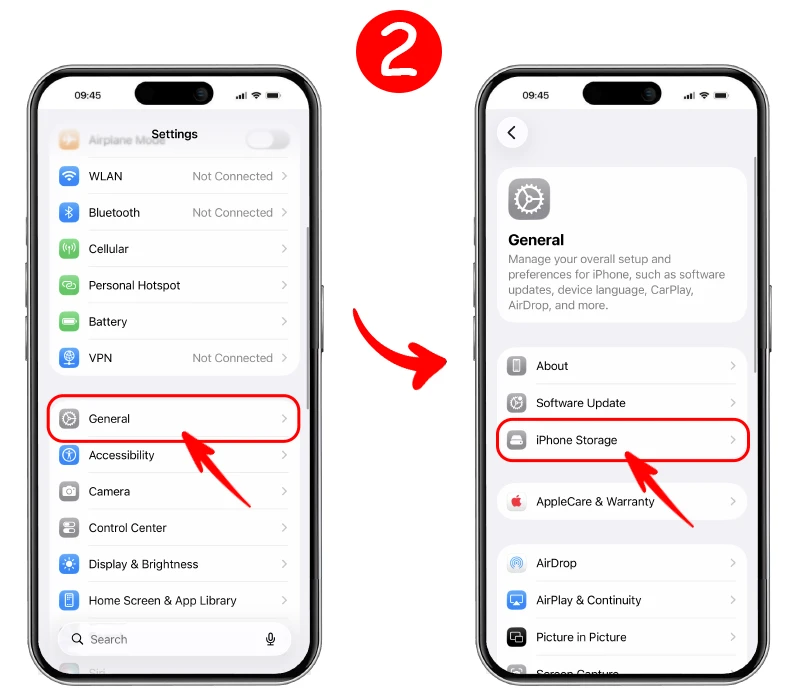
- Go to the “Settings” section on your iPhone.
- Enter the “General” menu and then tap on “iPhone Storage”.
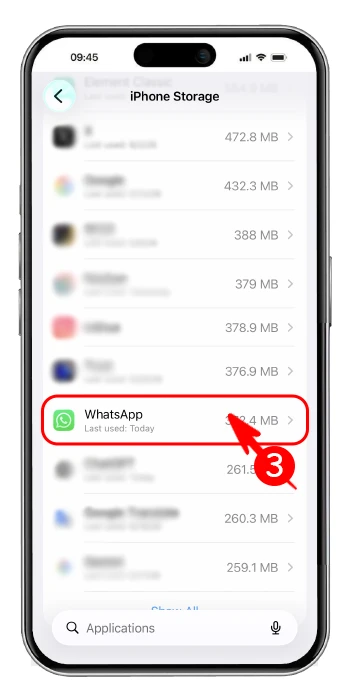
- Search in the list of apps and select “WhatsApp”.
- Tap the blue “Offload App” button and confirm it again in the opened pop-up.
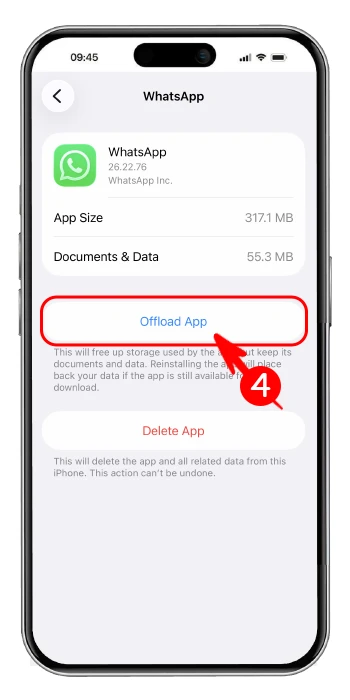
By doing this, the WhatsApp icon will remain on your home screen, but the app will be completely disabled and you will not receive any messages or calls. To log back in, simply tap on its icon so that the app is downloaded from the App Store and activated without needing to enter your phone number.
Delete and Reinstall WhatsApp to Log Out of the Account
As we mentioned in the previous section, the iPhone operating system does not have a feature equivalent to Clear Data on Android. Therefore, the main and permanent solution for completely logging out of the user account is to delete the WhatsApp application itself and reinstall it.
Do not forget that before doing this, you must have backed up via iCloud so that your information remains safe. The steps to do this are as follows:
- On the iPhone home screen, press and hold your finger on the “WhatsApp” icon.
- From the opened menu, select the “Remove App” option.
- Then tap “Delete App” so that the app and its data are completely deleted.
- Now go to the App Store and search for, download, and install WhatsApp again.
With this action, as soon as you open the app again, you will be asked for a new phone number. If you want to log back into your previous WhatsApp account after logging out, use the linked training.
How to Log Out of WhatsApp on Android
On the Android operating system, there are two main methods for this, and depending on your needs and conditions, you can choose one of them.
The Method to Log Out of WhatsApp on Android Phones
One of the methods that is currently being shared on the internet for logging out of WhatsApp account is using the Clear Data section in phone settings. By using this option, you can completely clear the app's data from your phone and log into the app again as if it were the first day.
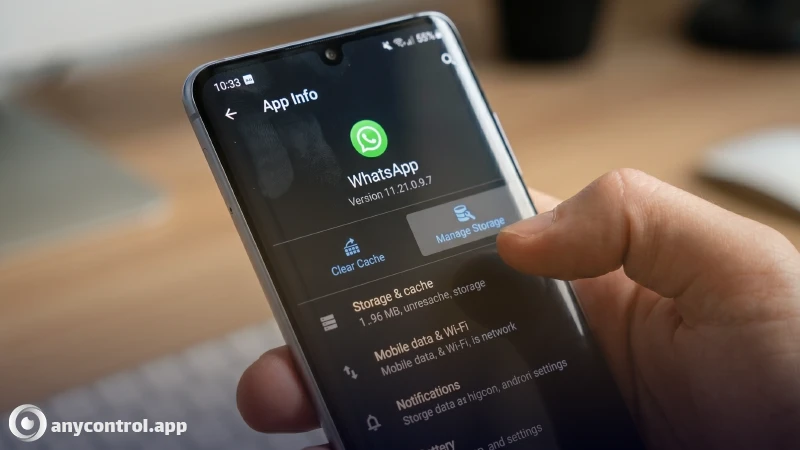
🔴 However, this option does not exist at all in the settings for WhatsApp and all these tutorials are either from the past or are incorrect.
Nevertheless, to answer users who ask how to log out of my WhatsApp account, we must say that the only way to log out on Android is to delete and reinstall the app.
Using the Linked Devices Feature for Second Phones
WhatsApp has recently introduced the ability to connect one account to multiple phones in Companion Mode in its updates. If you are using WhatsApp on a second phone, your work to log out is much simpler, and unlike the main phone, the logout button exists here.
To check the difference between these two methods on Android, pay attention to the table below:
|
Feature and Conditions |
Clear Data Method (Main Phone) |
Linked Devices Method (Second Phone) |
|
Main Application |
When WhatsApp is on your main SIM card |
When the phone is linked to another account |
|
Need for Backup |
Completely mandatory |
No need |
|
Internal Log Out Button |
Does not have ❌ |
Has ✅ |
- On the second phone, open the WhatsApp app.
- Tap the three-dot icon in the top right corner of the screen.
- Select the “Settings” option.
- Go to the “Account” section.
- On this page, you will see the “Log out” option; tap on it and confirm the operation.
In this simple way, the connection of the second phone from your main account is cut and you successfully log out of the account.
How to Log Out of WhatsApp on Computer
Fortunately, logging out of the account in desktop and WhatsApp Web versions is much simpler than on mobile phones. In these versions, the logout button is embedded by default and is completely accessible.
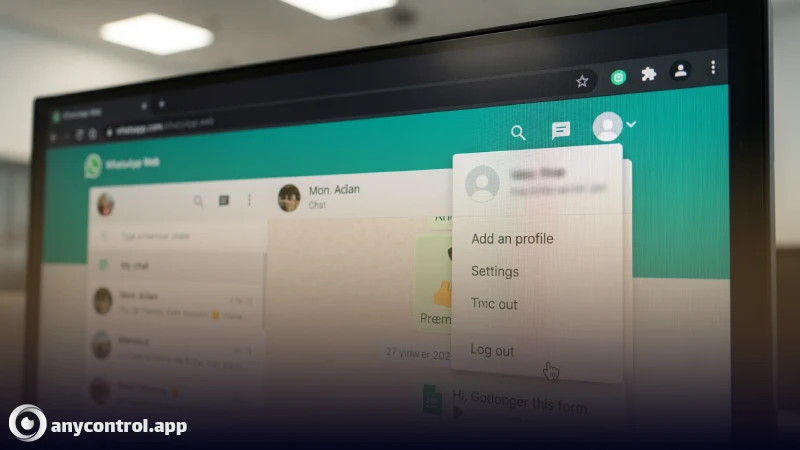
If you have logged into your account on your workplace or another personal system, use the following steps to log out of WhatsApp:
- Open your browser and go to the WhatsApp Web tab.
- At the top of the chat list, click on the three-dot icon.
- From the opened menu, directly click on the "Log out" option.
- In the message displayed on the screen, confirm the logout again.
How to Log Out of WhatsApp Remotely from Other Devices?
One of the most important security features of WhatsApp is the connected devices feature. Suppose you logged into your account on a cyber cafe, university computer, or your friend's laptop and forgot to log out! You can cut off access to all other devices remotely through your main mobile phone (Android or iPhone).
This feature is especially vital when you feel that someone has entered your account without permission. To cut the connection and log out remotely, follow these steps:
🟠 Open the WhatsApp app on your main phone.
🟠 On Android, tap the three dots at the top, and on iPhone, tap your profile at the bottom of the screen.
🟠 Go to the Linked Devices section.
🟠 On this page, you will see a list of all browsers and systems connected to your account.
🟠 Tap on the desired device that you want to log out from.
🟠 Select the red Log Out button.
In the Linked Devices section, WhatsApp shows useful information such as the last visit time (Last active), browser type, and operating system of the connected device, which helps you easily identify unknown devices. By tapping the logout button, your active WhatsApp sessions on that device are immediately closed and no one can access your messages. This method is useful when you think someone is spying on your WhatsApp.
Log Out vs Delete Account in WhatsApp, What's the Difference?
One of the biggest mistakes users make when trying to log out of their account is using the Delete Account option in WhatsApp settings. Many people confuse these two concepts with each other.
Logging out of the account only means ending the active session on a specific device.
In this case, your current device's connection to Meta's servers is cut, but
your user account remains alive and active in WhatsApp's database.
In contrast, deleting an account is a very radical, irreversible, and permanent process. If you delete your account, the following consequences await you:
🔷Your phone number will be completely removed from WhatsApp's database and servers.
🔷You will be automatically removed from all WhatsApp groups and channels you are a member of.
🔷The history of all messages, photos, and videos will be permanently deleted even in cloud storage.
🔷Your friends will no longer see your account in their contact list and previous chats will lack a profile picture.
Final Thoughts
Even though WhatsApp does not provide a direct button to log out of your account on
mobile, with the methods mentioned, you can easily log out of your account on
Android, iPhone, WhatsApp Web, and the desktop version. Just do not forget to
take a backup of your important chats before any action so that your
information is not lost if you reinstall WhatsApp.
Ifyou encounter any problems using any part of the app or have any questions, our experts are ready to answer you in the comments section and online chat.
FAQ About Logging Out of WhatsApp
Currently, WhatsApp does not offer a direct logout option on the primary mobile app without clearing data or deleting the app. The safest way is to back up your chats first, then use the Offload App feature on iPhone or clear data on Android. Note that a native logout button is currently being tested in WhatsApp beta for Android.
Open WhatsApp on your main phone, go to Settings > Linked Devices, find the WhatsApp Web session, and tap Log out. This will immediately sign you out from the desktop or browser.
WhatsApp allows you to add up to 3 accounts in the same app. Go to Settings, tap the arrow next to your profile name, and select Add account. This way you can switch between accounts without logging out of any of them.
Logging out from one device only ends the session on that specific phone or computer. Your account remains active on other devices, and your chats stay safe (as long as you have a backup).
As of mid-2026, WhatsApp still does not have a native logout button on the main mobile app for most users. A logout feature is currently rolling out in beta for Android, allowing users to sign out without deleting data. On iPhone, you still need to use Offload App or delete the app.

Read the latest news about technology, social media platform and lifestyle in this section.

Learn How to do anything through by step by step tutorials and photo guides in this section.

Tips and Tricks and social media hacks are posted in this section regularly to improve your experience when using technology.

Staff management It is a key part of human resource management. Staff management strategies refers to organizing numerous operations so that actions contribute to the company's success. Learn all you need to know about supervising and guiding the employees for efficiency in performance in the staff management section.

Learn about online safety rules and what not to do on the internet by reading the articles of this section.

Learn how to root your Android smart phone with step by step tutorials and photo guides.

Discover regular and free tutorials and start learning or improving your skills in using technology and social media platforms.

You can download drivers and programs needed for rooting and changing the ROM of Android phones and other devices from this section.

In this section, discover the latest methods of making money online using the internet and mobile phones.

Read the articles in this section, stay informed about the latest and most profitable cryptocurrency airdrops and how to claim them.

The tutorial for installing & activating the AnyControl application on devices with various models is located in this section