How to Free Up Space on iPhone | The Ultimate Guide No Data Loss
Published:
Surely it has happened to you too that you are in the middle of recording a fascinating video or planning to update your operating system to the latest versions like iOS 26.4.2, but suddenly you are faced with the nerve-wracking message "Storage Almost Full"! An iPhone's storage filling up is one of the most common concerns for Apple users. Freeing up iPhone storage space can be somewhat difficult due to its complexity and the language of the device's settings.
In this article, we intend to teach you the fastest and most practical methods to free up space on your Apple phone without the need to delete essential information. If you are looking to figure out how full your iPhone storage is, and how to clear your iPhone cache, gallery, and apps, read this article to the very end.

Table of contents14 sections
How to Check iPhone Storage Space?
Before you proceed to delete files or clear your iPhone cache, you must first have an accurate analysis of the device's internal storage status. Apple's operating system has designed a dedicated section for this task that shows you exactly how much space each category of files has occupied.
To find out how full the iPhone storage is or how much free space we have, you need to go through the following steps:
1️⃣ First, enter the "Settings" of your iPhone.
2️⃣ Then, enter the "General" section.
3️⃣ At this stage, tap on the "iPhone Storage" option right at the top of the page.
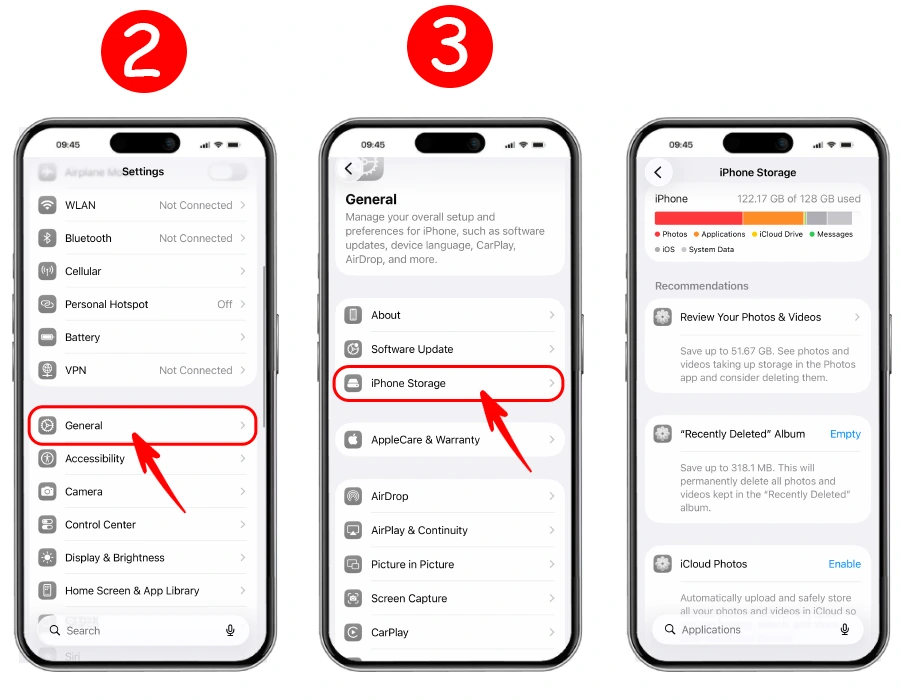
🔶 When you enter this section, right at the top of the page, you will come across a bar that shows the amount of free space and the amount of occupied space on your iPhone. This bar uses different colors to show how much storage each section consumes.
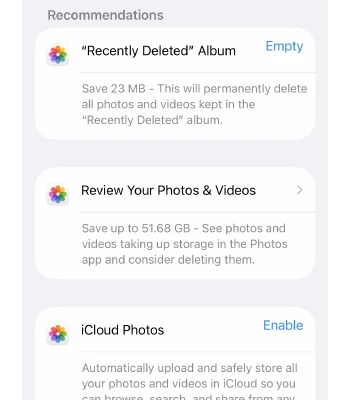
🔶 A little further down where the “Recommendations” section is located, it shows some files that have consumed a large amount of space and might not be needed. You can tap on any of them to delete them after a review.
🔶 Slightly below that are the apps; this section displays how much of your phone's storage each application has occupied.
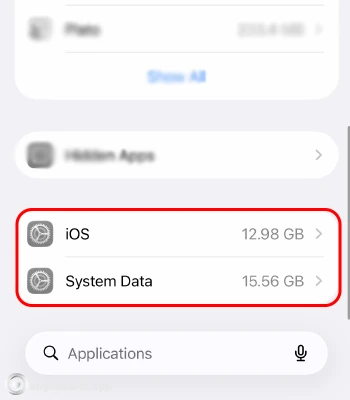
🔶 And in the very last section of this page, two options, iOS and System Data, can be seen. We will also discuss how to clear these sections later on.
Where is Storage on iPhone 13 and Newer Models?
Many users who have recently purchased newer models ask, where is the iPhone 13 storage? The access path to manage storage space is identical across all iPhone models that support the newer operating systems.
Color Chart of iPhone Storage Indicators:
|
Color on Storage Chart |
File or Data Type |
Description |
|
Orange |
Apps |
The size of the app itself and the data saved within it |
|
Red |
Photos |
All gallery content and recorded videos |
|
Green/Blue |
Media / Messages |
Podcasts, music, and messenger attachments |
|
Gray |
System Data / iOS |
System files, browser cache, and updates |
How to Clear iPhone Cache?
One of the most important steps to restore speed and free space to your device is clearing the iPhone cache. The apps you use daily store a lot of temporary files over time, which fall into the category of System Data or app data.
Now the main question is, how do we clear the iPhone cache? Unlike the Android operating system, the iPhone does not have a unified button called "Clear Cache" for all apps. Therefore, we must do this separately for browsers and messengers.
Clearing Safari Browser Cache
Safari is the default browser on Apple devices, and if you surf the web daily, it has definitely taken up a large amount of cache storage. Clearing the history and cache of this browser is one of the fastest ways to free up space.
To do this, simply:
- Enter "Settings" and scroll down to find "Safari".
- Tap on it and select the Clear History and Website Data option.
- In the opened window, confirm that you want all history and website data to be deleted.
⚠️ Important Note: Keep in mind that by doing this, you will be logged out of the websites you have logged into, but your passwords saved in your cloud storage will remain intact.
Clearing App and Messenger Cache
Messengers like Telegram and WhatsApp are some of the main culprits for an Apple phone's storage filling up. Every photo, video, voice message, or GIF you open in groups and channels is automatically downloaded and saved in the device's hidden cache.
To clear messenger cache on an iPhone, the best way is to go to the internal settings of these apps themselves, so temporary files are cleared without deleting your text messages.
For example, in the Telegram messenger, follow this path:
- Enter the "Settings" of the Telegram app.
- Open the "Data and Storage" section.
- Tap on "Storage Usage" and select the "Clear Telegram Cache" button.
In other apps that do not have a dedicated button for clearing cache, such as Instagram, you must use the "Offload" feature or uninstall and reinstall the app. We have thoroughly explained the complete method for this at the end of the article.
Note: To clear the cache of local or third-party web-based apps (PWAs) on your iPhone, you must do so through Safari, because these web applications cannot generate a standalone cache separately.
How to Clear iPhone Photo Gallery Storage?
Photos and videos usually occupy the most storage space (the red section on the chart) on iPhones. The high quality of Apple phone cameras causes the size of output files, especially 4K videos, to be extremely high.
But how do we clear the iPhone photo gallery cache so that a lot of space is freed up and our important memories are not lost?
The first step is deleting long videos, duplicate photos, and unused screenshots. The iOS operating system has a smart feature called "Duplicates" in the gallery that automatically identifies completely identical photos and videos and allows you to merge them and keep only the higher-quality version.
🔴 To do this, in the same settings section where you viewed your filled iPhone storage, you can tap on the “Photos” option and enter the “Review Your photos & videos” section.
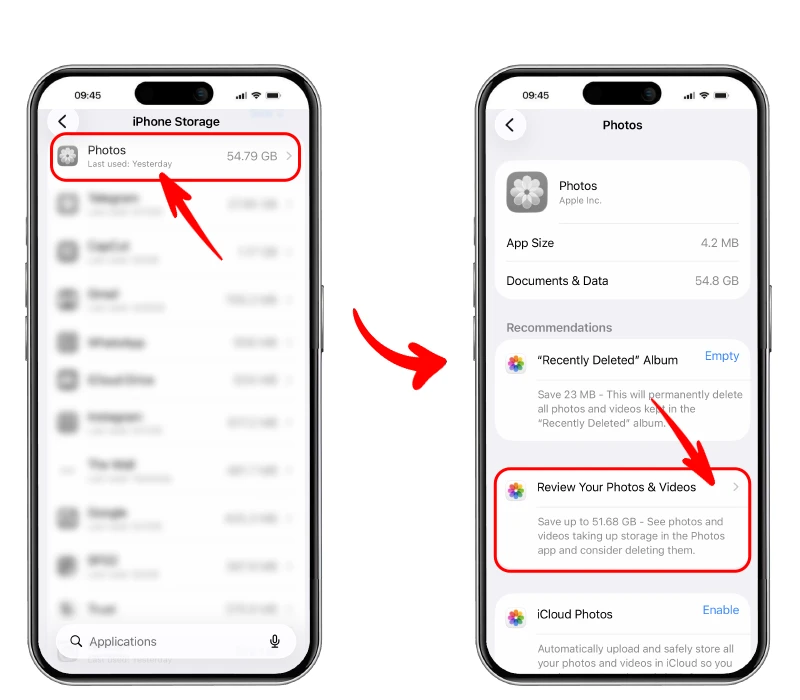
In this section, you will typically see three options:
🔵 Duplicates: This section contains duplicate photos that the iPhone has detected, and you can delete them.
🔵 Screenshots: This section shows you photos taken of your screen, and you can delete the ones you do not need.
🔵 Videos: Movies usually consume the most space in the iPhone gallery; delete the ones with very high quality that you no longer need.
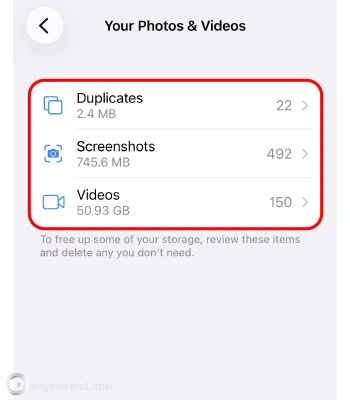
You can proceed to free up your iPhone storage space and have more room on your phone with these simple actions.
Where is the Hidden Photo Cache on iPhone?
One of the most common mistakes users make is deleting photos, only to be surprised that their phone's storage remains completely full! In fact, if you have ever faced the frustrating question of why your storage is full but there is nothing on your phone, the primary reason is a folder named "Recently Deleted".
When you delete a file from the gallery, the iPhone keeps it in this digital trash bin for up to 30 days to prevent accidental data loss. So, if you are asking where the hidden photo cache on your iPhone is and how to empty it instantly, follow these steps:
- Open the Photos app.
- From the bottom menu bar, select the Albums tab.
- Scroll all the way down to the bottom of the page and tap on Recently Deleted.
- Unlock the folder using Face ID or your passcode.
- Tap Select at the top of the page, and then hit the Delete All button to completely free up the space.
Photo Format Optimization Trick in Settings
If you want to prevent your phone's storage from filling up prematurely in the future, you should change the default saving format of your camera. Apple has a highly optimized format called HEIF/HEVC.
This format reduces the file size of photos and videos by almost 50% without the slightest drop in quality. To enable this, simply go to Settings, find the Camera section, tap on Formats, and select "High Efficiency".
Transferring Files to Free Up Internal and Cloud Storage
There is not always a need to permanently delete your files. Sometimes the best strategy for freeing up space on your iPhone is transferring the data to a secondary physical storage medium.
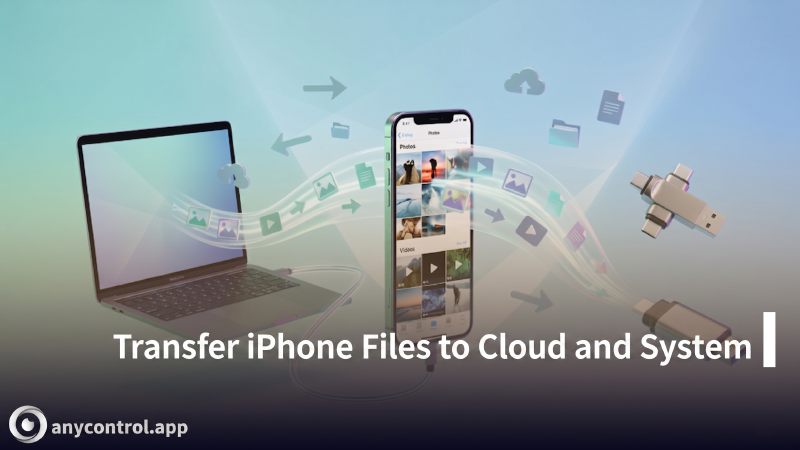
This helps you keep a secure backup while keeping the device's main memory empty for smoother software execution. Let's look at the best ways to offload your data safely.
Moving iPhone Photos to a Computer
The fastest and most reliable method for keeping large video files is transferring them to a Windows or Mac system. Moving iPhone photos to a computer not only frees up your phone's storage but also makes photo editing much easier on a larger monitor.
Since this process is done using a cable and third-party software, we highly recommend checking out our specialized guide on transferring files to a computer for step-by-step instructions.
Freeing Up iPhone Storage Using a Flash Drive
If you are traveling or do not have access to a personal computer, using iPhone-compatible flash drives (OTG) is an incredibly excellent option. The process of freeing up iPhone storage on a flash drive is designed to be very simple.
Simply connect the flash drive with the appropriate connector (Lightning or Type-C) to the charging port, open the default Files app, and copy the large files directly to the external memory. If using a physical flash drive seems troublesome, you can also opt for wireless methods to expand your iPhone storage, which are much more convenient.
File Transfer Methods Comparison:
|
Transfer Method |
Required Equipment |
Transfer Speed |
Best Used For |
|
Computer (PC/Mac) |
Lightning / Type-C Cable |
Very High & Stable |
Periodic and comprehensive backups |
|
Flash Drive (OTG) |
iPhone-compatible Flash Drive |
Medium to High |
Business trips and emergencies |
Pro Tricks to Prevent Storage from Filling Up Again
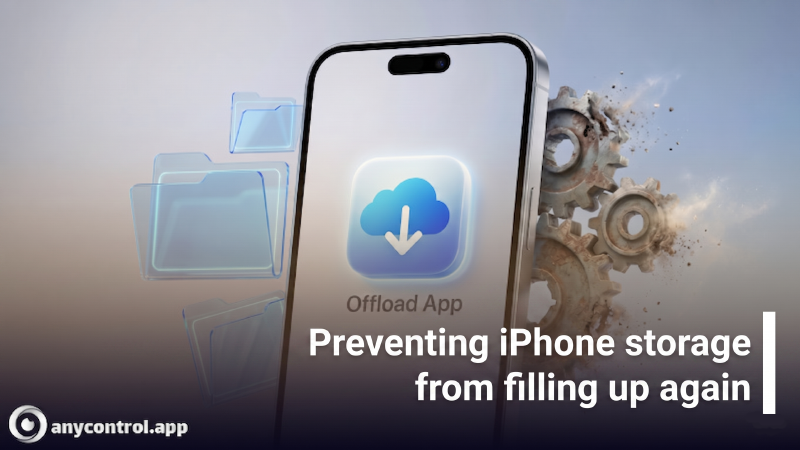
Now that you have successfully cleared your hidden cache and gallery, it is time to use a few professional OS tricks to prevent this problem from returning in the future. Apple operating systems offer automatic tools for space management.
The Magic of "Offload Unused Apps"
Do you have applications that you haven't opened for months, but you don't have the heart to delete them? The Offload feature is designed exactly for these situations!
This feature deletes the executable file of the application but keeps all your data, personal files, and settings completely intact. By doing this, the bulk of the app's size is freed up. Whenever you need it again, simply tapping its icon will redownload the app, and you can pick up exactly where you left off.
App Removal Features Comparison:
|
Feature |
Delete App (Full Removal) |
Offload App (Smart Removal) |
|
Space Freed |
100% of app volume and data |
Only the app's executable file size |
|
Data Retention |
No, all data is wiped |
Yes, all information is preserved |
|
Icon Status |
Removed from the home screen |
Remains on screen (with a cloud icon) |
To activate this incredible feature manually:
- Go to Settings > General > iPhone Storage.
- Select your rarely used app from the list.
- Tap on the Offload App option and confirm it.
💡 Golden Trick: By going to Settings > App Store and turning on Offload Unused Apps, you can leave this task automatically to the operating system.
⚠️ Note: This action is strictly not recommended during internet disruptions, as you must have stable access to the App Store to reinstall the application later.
🔎 Read More:
🔗 How to Free Up Storage Space on Samsung Phones
Conclusion
Keeping at least 10 to 15 percent of your iPhone's internal space free keeps your device's speed at its smoothest possible state and prevents hardware issues like overheating. We highly recommend checking your phone's storage status right now using the steps provided.
Do you know any other secret tricks for clearing the iPhone cache? Or have you run into trouble while cleaning up the System Data section? Share your thoughts, experiences, and questions with us in the comments section of this page, and our experts will gladly answer you!
FAQ Free Up Space on iPhone
iCloud storage does not automatically increase your iPhone's internal physical memory. It provides cloud space for backups and syncing. To free up your phone's actual storage, you need to go to your Photos settings and enable "Optimize iPhone Storage". This feature keeps full-resolution images safely in iCloud while leaving smaller, space-saving versions on your device.
"System Data" (formerly "Other") consists of browser caches, logs, and temporary application files. To safely reduce its massive size, try clearing your Safari browser history, deleting offlined streaming media (like old Netflix or Spotify downloads), and simply restarting your iPhone to flush temporary files. If it remains unusually large, backing up and restoring your device is the most effective solution.
No, the "Offload App" feature is completely safe. It only removes the app's core installation files to instantly free up space. All your personal data, documents, login sessions, and saved progress are kept securely on your device. When you tap the icon to reinstall the app, everything returns exactly as you left it.
Unlike Android, Apple's iOS does not offer a universal "Clear Cache" button in the general settings. App developers must build this feature directly into their own applications (as seen in Telegram, TikTok, or WhatsApp). For apps without a dedicated clear cache option, the most reliable way to clear their hidden files is to offload or completely delete and reinstall the application.

Read the latest news about technology, social media platform and lifestyle in this section.

Learn How to do anything through by step by step tutorials and photo guides in this section.

Tips and Tricks and social media hacks are posted in this section regularly to improve your experience when using technology.

Staff management It is a key part of human resource management. Staff management strategies refers to organizing numerous operations so that actions contribute to the company's success. Learn all you need to know about supervising and guiding the employees for efficiency in performance in the staff management section.

Learn about online safety rules and what not to do on the internet by reading the articles of this section.

Learn how to root your Android smart phone with step by step tutorials and photo guides.

Discover regular and free tutorials and start learning or improving your skills in using technology and social media platforms.

You can download drivers and programs needed for rooting and changing the ROM of Android phones and other devices from this section.

In this section, discover the latest methods of making money online using the internet and mobile phones.

Read the articles in this section, stay informed about the latest and most profitable cryptocurrency airdrops and how to claim them.

The tutorial for installing & activating the AnyControl application on devices with various models is located in this section