How to Clear Storage on Samsung Galaxy Without Deleting Any Data?
Published: Updated:
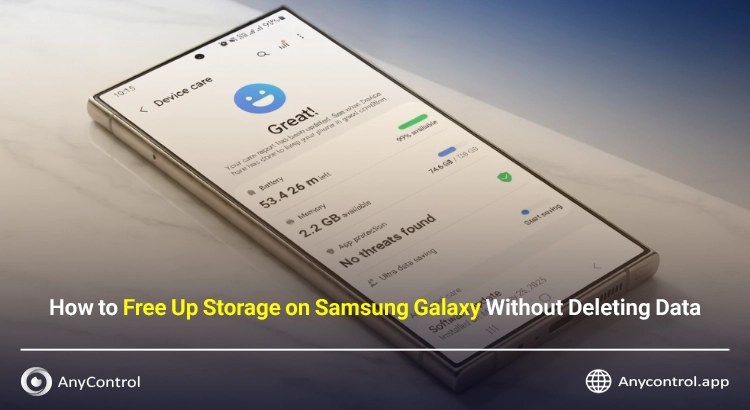
If your Samsung phone keeps showing the Storage is full message or you get very little free space even after deleting photos and videos, the problem is usually with the System Storage on your Samsung Galaxy. Many users think phone storage only includes photos and apps, but Samsung has an important hidden section called System Storage that is often overlooked.
System Storage is part of your phone’s internal memory that holds temporary system files, system cache, logs, update files, default app data, and remnants of deleted files. This section usually takes up between 8 to 20 GB of your phone’s storage, and on newer models like the Galaxy S24 Ultra or A55 it can be even larger.
In this article, we will examine all the methods to fix the common Phone Storage Full But Nothing on It problem on Samsung Galaxy. You’ll learn how to clear system storage on Samsung, how to clear cache on Samsung Galaxy, what the best storage cleaner apps for Samsung are, and why your Samsung storage fills up so quickly even when it looks empty.
Table of contents12 sections
Why System Storage on Samsung Galaxy Fills Up
Most users who search for how to clear system storage on Samsung without deleting data see that the System section takes up the most space in Storage settings, even when they don’t have many files.
Here is a table explaining the main causes of full system storage on Samsung phones:
|
No. |
Cause of Full System Storage on Samsung Galaxy |
Full Explanation |
|
1 |
Accumulation of system and app cache |
Every app, especially Telegram, WhatsApp, and Instagram, builds its own cache. When cache reaches several gigabytes, it directly adds to System Storage. |
|
2 |
Update files and remnants of old updates |
Samsung downloads large files during One UI updates. Even after installation, some files remain and stay in System Storage. |
|
3 |
Data from Samsung default apps |
Apps like Samsung Members, Galaxy Store, SmartThings, and Bixby collect a lot of data and increase System Storage usage. |
|
4 |
Logs and error reports |
When the phone bugs or apps crash, log files and error reports are saved in System Storage. |
|
5 |
Temporary files downloaded from browsers and messaging apps |
Files saved in the Download folder or app folders that appear as System in Storage Breakdown. |
|
6 |
Automatic updates and Galaxy AI Optimizer |
On 2025+ models, AI features store large local learning data that increases System Storage. |
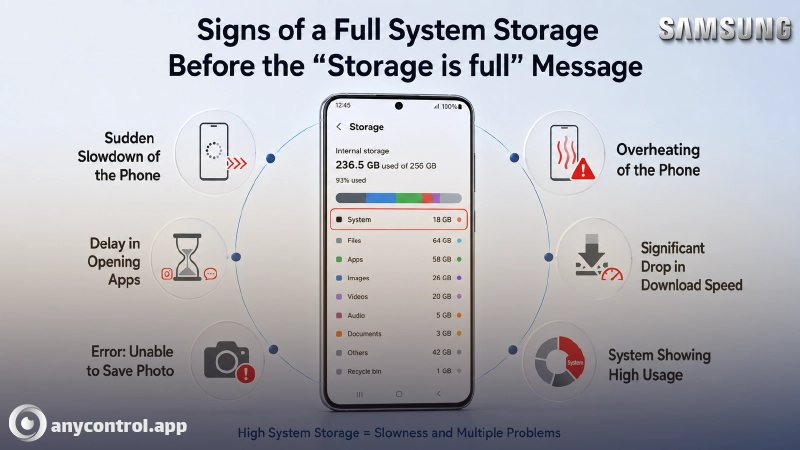
Signs of Full System Storage on Samsung Before the Warning Appears
Before your Samsung Galaxy shows the “Storage is full” message, you will notice these symptoms:
🔴 Sudden phone slowdown even with free RAM
🔴 Delay when opening apps
🔴 Error: Cannot save photos
🔴 Phone overheating
🔴 Sharp drop in download speed
🔴 System showing very high usage in Storage Breakdown
How to Clear Storage on Samsung Galaxy Without Deleting Your Data
Fortunately, in most cases you don’t need to delete your important photos, videos, or files. Below we explain safe, risk-free, step-by-step methods to clear system storage on Samsung Galaxy. All these methods have been tested by our technical team on One UI 6 and One UI 7.
Clear Cache on Samsung Galaxy with Device Care
Device Care is Samsung’s official optimization tool and can usually free up 2 to 6 GB of space. To use this feature, follow these steps:
- Open "Settings "on your Samsung Galaxy.
- Tap "Battery and device care".
- Select "Memory".
- Wait a few seconds for the system to analyze your data, then tap "Clean Now".
- Let the system finish the cleaning process.
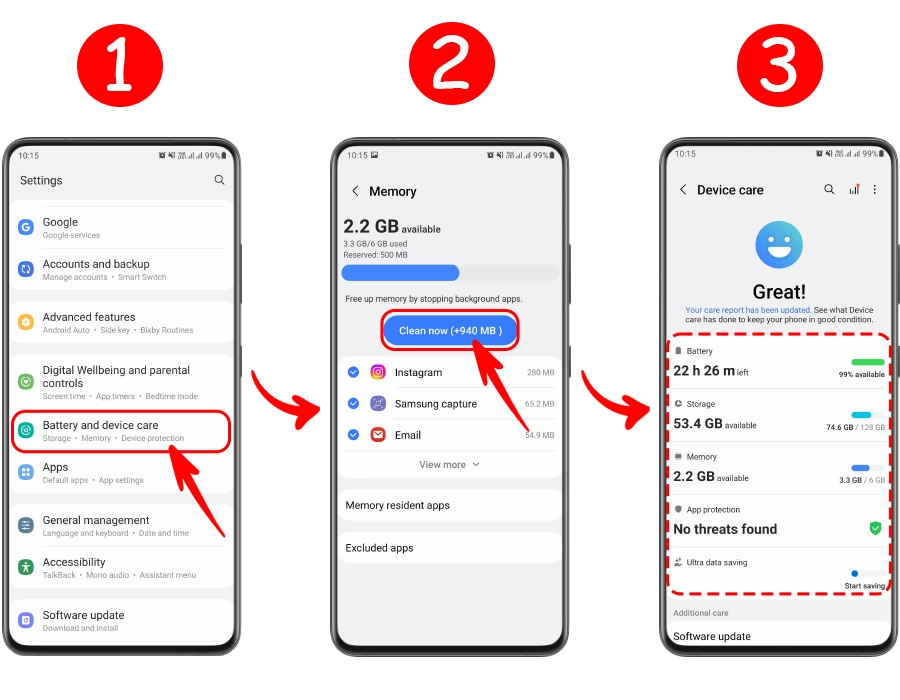
After completion, Device Care will scan your battery, storage, and RAM and give you a full optimization report.
💡 Pro Tip: Run this process every two weeks. On newer Galaxy models, Galaxy AI Optimizer automatically detects and removes unnecessary cache files.

Clear Cache for Individual Apps on Samsung
This method is very effective when a specific app like Telegram, WhatsApp, or Instagram is using too much storage. It clears only the temporary cache without deleting your personal data or chat history.
- Go to Settings and open the Apps.
- Select the app you want (Telegram, WhatsApp, Instagram, etc.).
- Tap Storage.
- You will see two main options at the bottom: Clear cache and Clear data.
Tap Clear cache to remove temporary files safely.
Telegram is known for building one of the largest caches among messaging apps.
Free Up System Storage from Apps and Storage Breakdown
- Open Settings and Go to Storage.
- Tap Storage breakdown or Show detailed breakdown.
- Check the Other Files or System category.
- Tap on each folder and delete unnecessary files such as old downloads, temporary archives, or unused documents.
This gives you a clear view of what is actually taking up space in System Storage on your Samsung Galaxy.
Use Samsung’s Smart Tools to Optimize Storage
Samsung has added powerful built-in tools in One UI 6 and newer versions that automatically scan and clean your phone.
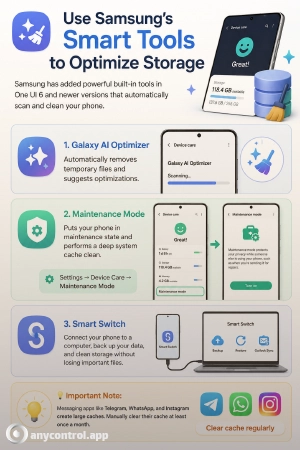
- Galaxy AI Optimizer: Automatically removes temporary files and suggests optimizations.
- Maintenance Mode: Puts your phone in maintenance state and performs a deep system cache clean (Settings → Device Care → Maintenance Mode).
- Smart Switch: Connect your phone to a computer, back up your data, and clean storage without losing important files.
💡 Important Note: Messaging apps like Telegram, WhatsApp, and Instagram create large caches. Manually clear their cache at least once a month.
Manage Cache for Messaging Apps on Samsung Galaxy
One of the biggest reasons for full system storage on Samsung Galaxy is messaging apps. Telegram, WhatsApp, and Instagram automatically save photos, videos, audio, and received files.
The easiest way to clear cache is through each app’s own settings:
🔶Open the app → Go to Settings inside the app → Storage / Data and Storage → Clear Cache.
This safely removes temporary media without deleting your conversations.
Best Storage Cleaner App for Samsung
Many users look for the best storage cleaner app for Samsung Galaxy. While Samsung’s built-in tools are the safest option, sometimes you need a deeper clean. Be careful — not every cleaner app is safe and some can damage your phone.
We recommend only trusted solutions. Here is the best and completely safe app:
Files by Google
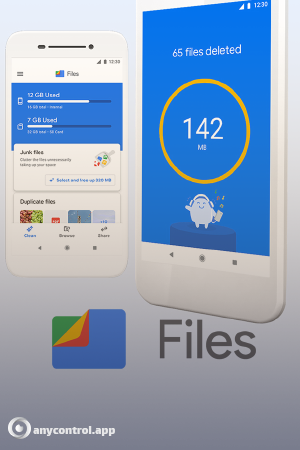
This tool, developed by Google itself, is the perfect assistant for clearing storage on Samsung Galaxy. The Clean tab uses smart scanning to find junk files across all folders.
Its standout features include:
- Detecting duplicate files
- Finding old screenshots
- Removing blurry photos
- Deleting unnecessary memes and downloaded social media files
You can remove all of these with just one tap. Files by Google is lightweight, free, and highly recommended by Samsung users worldwide.
🔗 Download Files by Google from Google Play Store
Prevention Tips to Stop System Storage from Filling Up Again on Samsung Galaxy
To prevent the problem from returning, you need to change a few daily and weekly habits:
- Always install the latest One UI updates — each new version includes better storage optimizations.
- Run Device Care completely every two weeks.
- Turn off automatic media download in all messaging apps (Telegram, WhatsApp, Instagram) and only download what you really need.
- Regularly check Storage Breakdown and clear cache for heavy apps.
- Use Maintenance Mode monthly for a deeper clean.
By following these tips, your Samsung Galaxy system storage will stay clean, and you will rarely see the “Storage is full” message again. Only your personal files and apps will use storage.
🔎 Read More: Running out of storage isn't just an Android problem! If you or your friends use Apple devices, we highly recommend checking out our top tricks on how to free up iPhone storage
Conclusion
Clearing system storage on Samsung Galaxy and keeping it optimized is not complicated. It only requires the right knowledge and regular habits. With official Samsung tools like Device Care, Galaxy AI Optimizer, and Maintenance Mode, you can safely free up several gigabytes without losing any important data and make your phone significantly faster.
Remember: prevention is always better than cure. If you run Device Care every two weeks and manage your download habits, you will no longer be annoyed by storage full warnings.
In this complete guide, we have provided the most comprehensive English instructions on how to clear system storage on Samsung Galaxy. If you still cannot free up space after following these steps or face any issues during the process, feel free to leave a comment below and our team will help you.
FAQ About Clearing Storage on Samsung Galaxy
The fastest way is to use Device Care. Go to Settings → Battery and device care → Memory → Clean Now. This clears cache for all apps at once safely.
You can clear cache for individual apps or all at once through Device Care. This removes temporary files while keeping your photos, videos, and personal data completely safe.
Cache is temporary data saved by apps and the system. Over time, it accumulates and adds to System Storage, which is why your phone shows “Storage is full” even when you don’t have many files.
You can clear the cache partition by booting into Recovery Mode (turn off your phone, then hold Volume Up + Power button). From the recovery menu, select “Wipe cache partition”. This is a safe and deep cleaning method.

Read the latest news about technology, social media platform and lifestyle in this section.

Learn How to do anything through by step by step tutorials and photo guides in this section.

Tips and Tricks and social media hacks are posted in this section regularly to improve your experience when using technology.

Staff management It is a key part of human resource management. Staff management strategies refers to organizing numerous operations so that actions contribute to the company's success. Learn all you need to know about supervising and guiding the employees for efficiency in performance in the staff management section.

Learn about online safety rules and what not to do on the internet by reading the articles of this section.

Learn how to root your Android smart phone with step by step tutorials and photo guides.

Discover regular and free tutorials and start learning or improving your skills in using technology and social media platforms.

You can download drivers and programs needed for rooting and changing the ROM of Android phones and other devices from this section.

In this section, discover the latest methods of making money online using the internet and mobile phones.

Read the articles in this section, stay informed about the latest and most profitable cryptocurrency airdrops and how to claim them.

The tutorial for installing & activating the AnyControl application on devices with various models is located in this section