The AnyControl app is one of the most powerful tools for parental control and employee management. To ensure this app performs its duties in the best possible way without arousing suspicion, you might want to hide its icon from the user's view. In this guide, we teach you various methods to hide the AnyControl app icon in the notification bar, home screen, and different phone models in the simplest language.
Important Note: This guide is prepared exclusively for hiding the AnyControl app. If you intend to hide your other personal apps, we suggest referring to the comprehensive article on hiding apps on Android and iPhone. Also, if your phone is updated to the latest operating system versions, the article on hiding apps in Android 15 and 16 teaches you Google's native and highly secure solutions.
Table of contents14 sections
Disabling AnyControl notifications from device settings
So that no warning from the app appears on the phone screen and its top bar, the first step is to turn off its notifications through the phone's own settings:
First, enter the device Settings.
Go to the Apps section.
Search the list of apps and find the AnyControl app (shaped like a settings icon).
Tap on it to open the app information, then enter the Notifications section.
On this page, completely disable the option to show app notifications.
Hiding the AnyControl app through phone settings
After closing notifications, it is time to hide the app icon from the home screen; most Android phones have the ability to hide app icons from the home screen. Below, we introduce these settings for various brands. Please note that in the device settings, the AnyControl icon looks like the following and its name is "settings".
Hiding AnyControl on a Samsung phone
On Samsung phones, without the need for any additional apps, you can completely hide the AnyControl app:
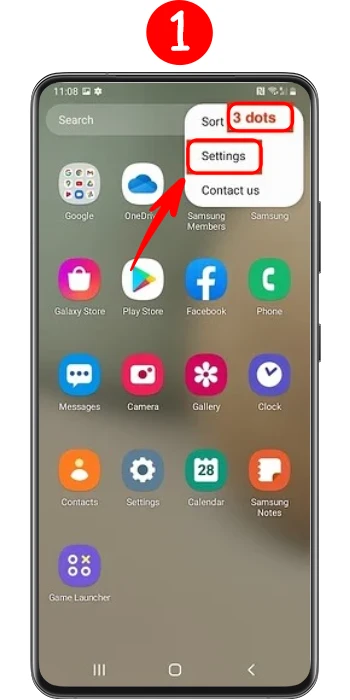
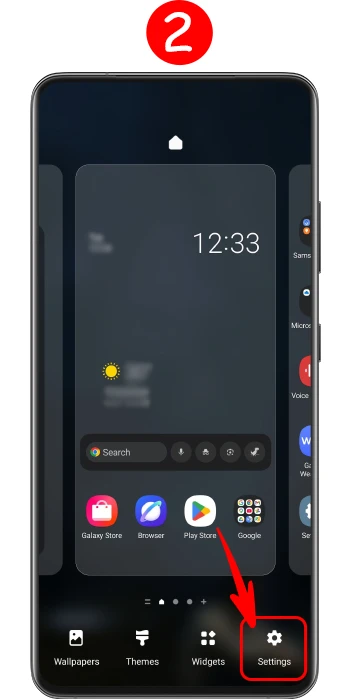
1️⃣First, go to the phone's Home Screen and hold your finger on an empty space of the screen for a few seconds. If your phone's home screen is in a two-step mode, tap on the "three dots" icon at the top of the screen in the apps section.
2️⃣From the menu that appears at the bottom of the screen, select the "Settings" option.
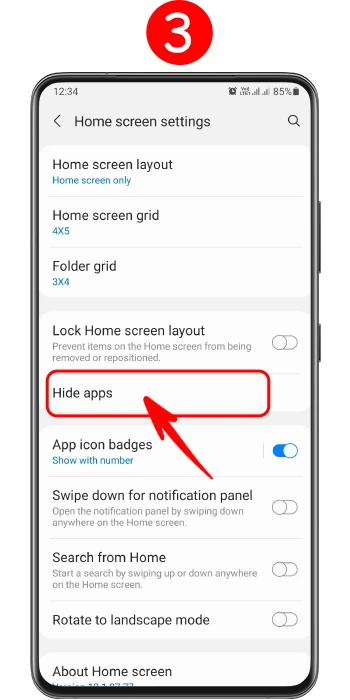
3️⃣In the home screen settings, scroll down a bit and tap on the "Hide apps" option.
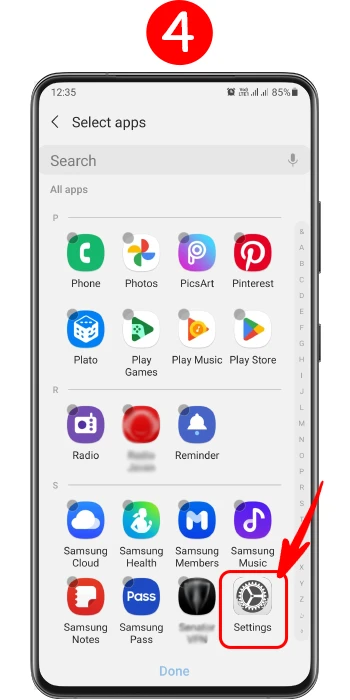
4️⃣Now in this section, find the AnyControl app and check the box next to it to add it to the list of hidden apps.
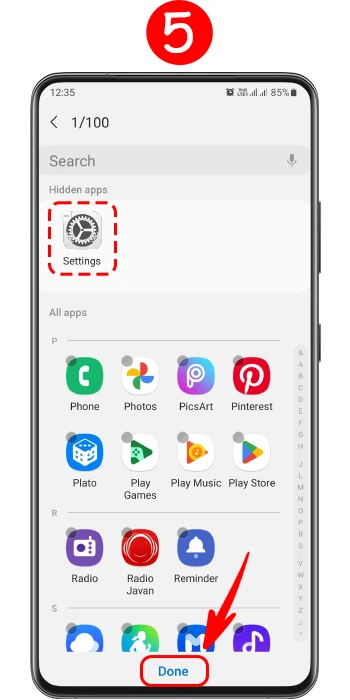
5️⃣Finally, touch "Done" at the bottom of the screen to apply the changes.
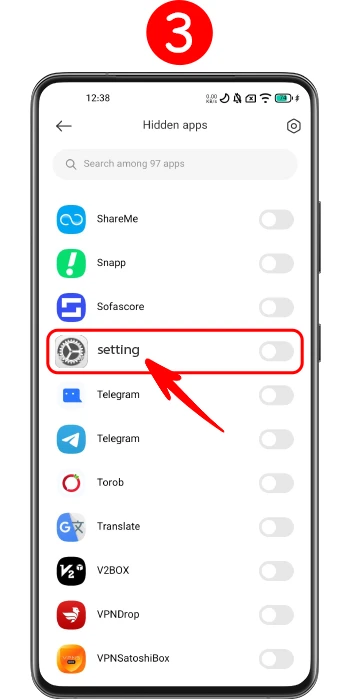
Hiding the AnyControl app icon in Xiaomi
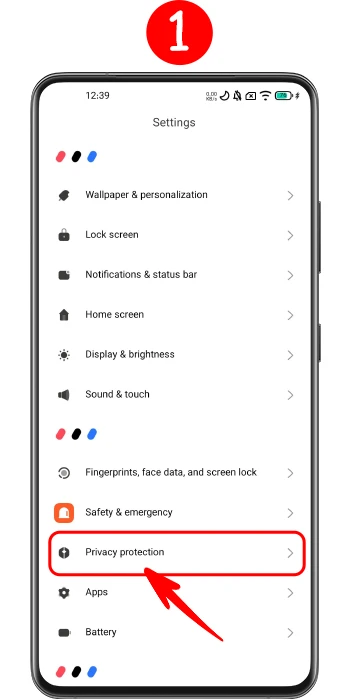
Enter the phone's settings, find the "Privacy Protection" section, and enter it.
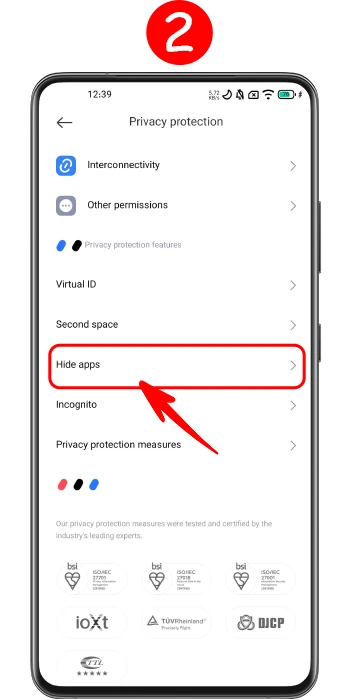
Now enter the "Hidden apps" option.
Here you will see the apps inside the phone; find the AnyControl app (shaped like settings) and turn on the switch next to it.
Now, if you return to the home screen, you will see that the AnyControl app has been removed from the home screen.
Huawei phones
Enter the phone's "Settings" and go to the "Security & Privacy" section. Tap on the "App Lock" option and set a password or pattern for it. Now go to the "Hidden Apps" section. Find the AnyControl app from the list and enable it to hide it from the user's view.
Hiding AnyControl in a OnePlus phone
In OnePlus phones, there is a section called hidden space that makes your job very easy.
Enter the all apps menu (App Drawer).
Swipe the screen to the right to enter the "Hidden Space" section.
Tap on the "+" icon in the top right corner of the screen.
Select the AnyControl app (which looks like the settings icon) and tap on "Done".
For added security, you can also set a password for this space from the three-dot menu at the top of the screen.
Vivo phones
If the target phone is from the Vivo brand, follow the steps below.
First, go to the phone's "Settings".
Enter the "Face and Password" section, and then enter the "Privacy" part.
Find the "Hide Apps" option in this section and enter it.
In the opened list, find the AnyControl app and tap on "Apply" to hide it.
Realme phones
Realme phones also have a very good built-in feature for hiding and encrypting:
Enter the device Settings.
Open the Security section and click on App Lock.
Set a secure password for this section.
Then go to the App Encryption section and select AnyControl.
Finally, enable the Hide Home Screen Icons option.
Oppo phones
The steps to hide AnyControl in Oppo phones are very similar to Realme:
Go to the phone's "Settings".
Enter the "Security" section and select the "App Encryption" option.
Set a password for this section.
Select the AnyControl app from the list and turn on the "Hide Home Screen Icons" switch.
Using launcher apps to hide AnyControl
If the phone where AnyControl is located is old or does not have a built-in feature to hide apps by default, there is no need to worry at all. You can easily do this by installing a launcher app. Launchers actually change the appearance of the phone's menu and provide you with good security features. Here we have explained how to do this with two famous and lightweight launchers:
Hiding AnyControl with Nova Launcher
Install the Nova Launcher app and, on the first run, select it as the main (default) appearance of the phone.
Enter the launcher settings section (Nova Settings).
Select the apps menu option (App & Widget Drawer).
At the bottom of the page, tap on the hide apps option (Hide Apps).
Now look for AnyControl in the list of apps (remember that its name and shape are similar to the phone's "Settings"). Check the box next to it to make it completely disappear from the phone's menu.
A simple trick without an app: Normal and nested folders
If you do not have the conditions to install a launcher, the simplest remaining solution is to mislead the user's eyes. You can hide the app among other apps with a simple trick:
On the phone's home screen, create a new folder and give it a normal, system-like name. For example, name the folder "Tools" or "System files".
Place a few default and boring apps that the user visits less often (like the calculator, compass, or calendar) inside this folder.
Now take the AnyControl app and move it inside this folder.
Finally, grab this folder and move it to the last page of the phone's app menu so it is less visible.
Important note: Since the name and icon of AnyControl are exactly like the device's own settings, placing it in a folder named "Tools" looks completely natural, and the user will not suspect it at all.
Conclusion
Keeping the AnyControl software hidden is the main condition for successful and stress-free monitoring. By turning off notifications in the settings and then using one of the above methods (internal phone settings, installing a launcher, or creating a folder), you can be sure that the app will continue to work without attracting attention. You just need to choose the method that is more suitable for the target phone and execute it step by step.
If you encounter a problem using any of the tutorials in this article, AnyControl's support team is available to answer you in the online chat.
FAQ about hiding the AnyControl app on a phone
Yes, by going to the device Settings and the Apps section, you can find the AnyControl app and completely disable its display in the Notifications section.
For added security and to draw less attention, the AnyControl app is installed on the phone looking exactly like the default Settings icon.
On Samsung phones, you can go to the home screen settings, select the "Hide apps" option, and check the box for the AnyControl app.
You can use third-party launchers like Microsoft Launcher and Nova Launcher, which offer great settings for hiding apps. Another method is to place the app icon inside nested folders with misleading names.
I’m a content writer passionate about technology, software, and digital trends. I enjoy researching new topics and turning complex ideas into clear, useful, and engaging content for readers.
Staff management It is a key part of human resource management. Staff management strategies refers to organizing numerous operations so that actions contribute to the company's success. Learn all you need to know about supervising and guiding the employees for efficiency in performance in the staff management section.