Children use the internet for school, entertainment, games, social media, and everyday questions. When a child quickly closes a tab or hides the phone screen, parents may naturally wonder: What is my child searching for online?
Checking your child’s search history can reveal interests, harmful content, scams, unsafe contacts, cyberbullying, or unhealthy screen habits. This guide explains how to check your child’s search history on Android and iPhone, review Google activity, understand deleted or private browsing, and monitor searches remotely.
Quick Answer: Open History in Chrome or Safari for a fast manual check. If the browser history was deleted, activity may still appear in the child’s Google Account. For continuous remote monitoring, parents can use AnyControl.
Table of contents17 sections
Why Should Parents Monitor Their Child’s Internet Searches?
The internet supports learning and creativity, but it can also expose children to content or contacts they are not ready to handle. One unusual search does not always indicate a problem. Repeated searches, risky websites, or sudden behavior changes are more meaningful warning signs.
Recognize cyberbullying, grooming, scams, and contact with strangers.
Prevent repeated exposure to violent, sexual, or age-inappropriate content.
Understand a child’s concerns, interests, and emotional struggles.
Manage excessive internet use and unhealthy screen-time habits.
The purpose of monitoring is protection, not punishment. Parents should use the information to understand context and begin a calm conversation at the right time.
Online risk
Possible impact
First action
Inappropriate content
Fear or confusion
Enable SafeSearch
Unknown contacts
Manipulation or scams
Review communication
Excessive use
Sleep or school problems
Set time limits
Harmful searches
Anxiety or unsafe behavior
Talk calmly and seek help
Search History vs. Browsing History
Search history contains the words or questions entered into Google, Bing, or another search engine. Browsing history lists the websites and pages opened in a browser. These records may be stored separately: Chrome or Safari keeps local browser history, while Google may save account activity when the child is signed in and activity controls are enabled.
Depending on the service, parents may also see the date and time of a visit, frequently opened sites, downloads, saved files, or activity synchronized from another device. No single screen combines every type of activity, so checking both browser history and account history provides a clearer picture.
Before choosing a method, decide whether you need a one-time check or continuous supervision. Manual browser checks are fast but require access to the device and can miss deleted or private activity. Account tools cover supported Google or Apple data. A parental control dashboard is more suitable when parents need regular remote reports across several types of phone activity.
Method 1: Check Chrome History on Android
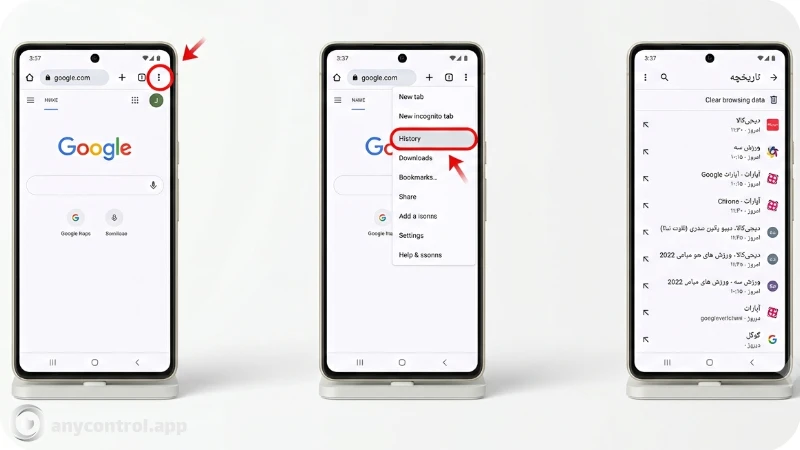
If your child has not deleted Chrome history, you can review visited websites directly on the Android phone:
Open Chrome.
Tap the three-dot menu in the upper-right corner.
Select History.
Review entries or use the search icon to find a website or keyword.
Chrome may show visited pages, their order, frequently used sites, and synced activity from devices using the same Google Account. It will not normally show pages opened in Incognito mode, searches performed in another browser, or activity inside unrelated apps.
If local history was cleared, check Google My Activity. When synchronization is disabled, only records stored on that device will appear.
Method 2: Check Safari History and Screen Time
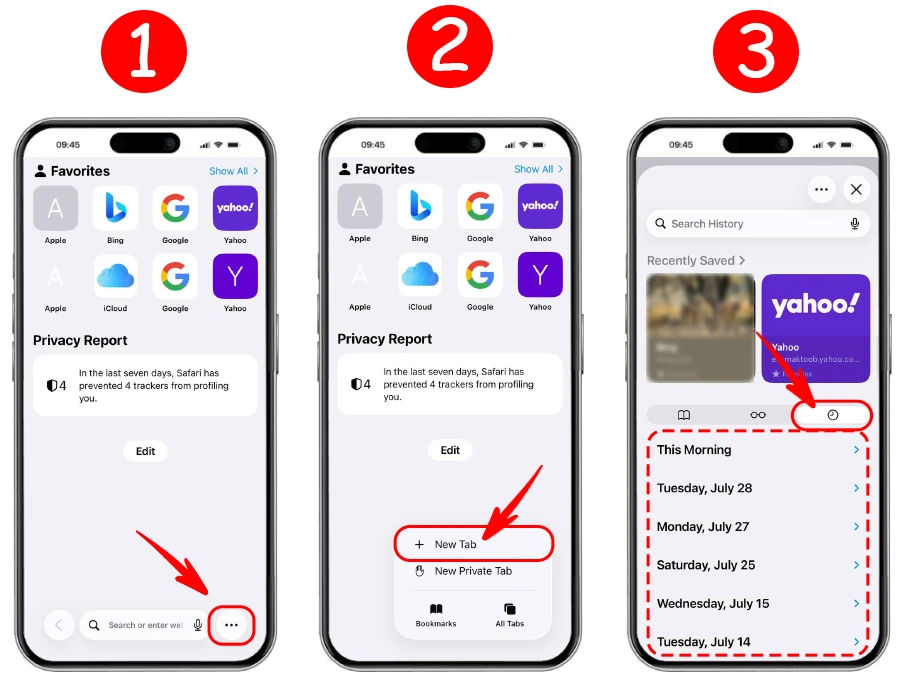
View Safari History
Tap More or open the bookmarks panel.
Select Bookmarks and tap the clock-shaped History icon.
Review recent pages or search for a specific website.
Safari history may sync across Apple devices when Safari is enabled in iCloud. Pages opened in Private Browsing or removed through Clear History will not appear in the normal list.
Check Website Activity With Screen Time
Go to Settings > Screen Time > See All App & Website Activity, then choose Day or Week. Through Family Sharing, a parent can also open Settings > Family, select the child, and view Screen Time from the parent’s iPhone. Screen Time highlights website and app usage, but it is not a complete record of every page or search phrase.
To restrict unsuitable websites, open Screen Time > Content & Privacy Restrictions > App Store, Media, Web & Games > Web Content, then choose Limit Adult Websites or Only Approved Websites.
Method 3: Use Google Family Link and My Activity
Family Link helps parents supervise a child’s Google Account, manage SafeSearch, approve apps, set screen-time limits, and apply Chrome website restrictions.
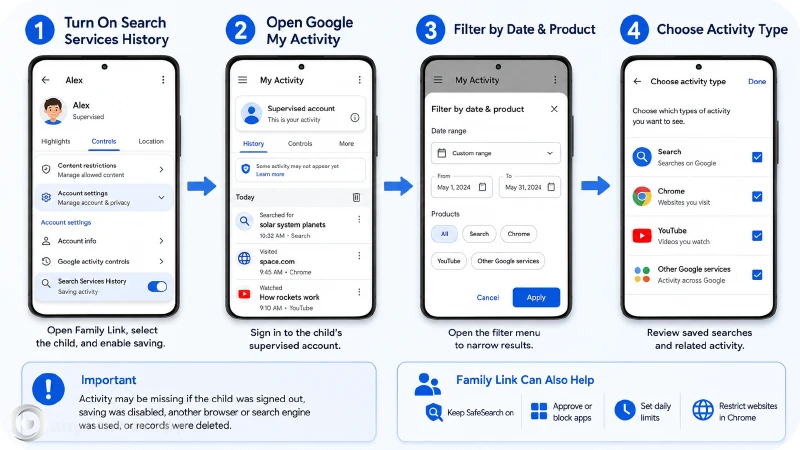
Turn On Search Services History
Open Family Link, select the child, then go to Controls > Account settings > Search Services History and enable saving. Some accounts may still display Web & App Activity while Google updates these settings.
Review Saved Searches
Open Google My Activity and sign in to the child’s supervised account.
Choose Search Services History or open the activity list.
Select Filter by date & product.
Choose Search, Chrome, YouTube, or another Google service.
Activity may be missing if the child was signed out, activity saving was disabled, another browser or search engine was used, or the records were deleted.
Family Link is most useful when the child consistently uses the supervised Google Account. It can also keep SafeSearch enabled, approve or block apps, set daily limits, restrict websites in Chrome, and manage supported location settings. SafeSearch filters explicit Google results, but it does not replace a browsing-history report.
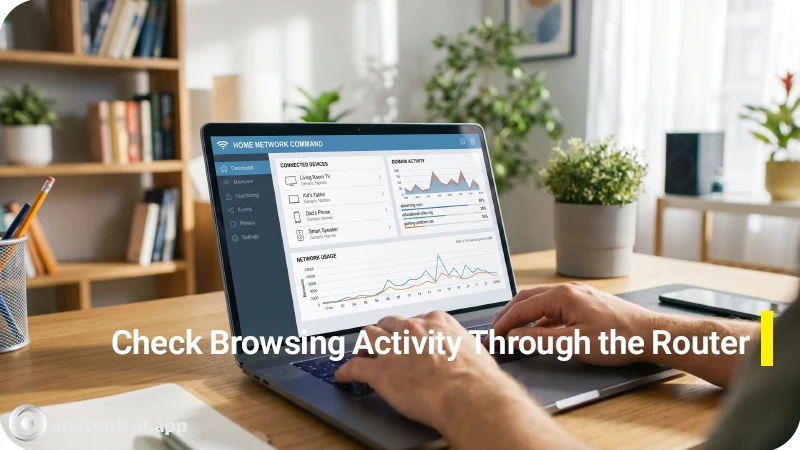
Method 4: Check Browsing Activity Through the Router
Some routers show connected devices, domains, access times, traffic usage, and blocked requests. Connect to home Wi-Fi, enter the router address such as 192.168.1.1, sign in, and look for Logs, Traffic Analyzer, Security, Parental Controls, or Connected Devices.
Router logs usually cannot display exact Google search terms because modern web traffic is encrypted. They also miss activity that uses mobile data, another Wi-Fi network, a hotspot, or a VPN. Router history is therefore useful for general patterns, not detailed search monitoring.
Can You See Deleted or Incognito Search History?
Clearing Chrome or Safari removes records from the browser’s normal History page. Google searches may still appear in My Activity when they were saved to the account and were not separately deleted.
Chrome Incognito and Safari Private Browsing do not keep the session in regular browser history after private tabs are closed. Incognito does not hide activity from websites, networks, downloaded files, or an installed parental monitoring application. A router may still show that a domain was contacted, but encryption normally prevents it from revealing the exact page or search phrase.
Monitor Searches Remotely With AnyControl
The easiest way to monitor searches that no longer remain in browser history is to use a professional parental control app. AnyControl is a complete parental monitoring system designed to help parents protect children under 18.
After the child-side application is installed, AnyControl records typed searches and sends the information to the parent’s secure online dashboard. Parents can review search-related activity even when browser history is cleared or a search is performed in Incognito mode.
AnyControl also helps parents monitor:
typed words, search phrases, and visited websites;
Instagram, WhatsApp, Telegram, and other social activity;
incoming and outgoing messages, calls, and contacts;
photos, videos, current GPS location, and previous routes;
alerts for sensitive keywords selected by the parent.
The application can operate without displaying its icon on the child’s phone. Parents sign in to the AnyControl dashboard from their own phone or computer and review the collected reports remotely.
To begin, create the parent account, install and activate the child-side application, and then open the dashboard to review new reports. The setup guide explains each step.
Which Search History Method Is Best?
Method
Search terms
Remote
Website history
Best for
Chrome/Safari
Sometimes
No
Yes
Quick check
Google My Activity
When saved
Limited
Some
Google activity
Family Link
Controls
Yes
Chrome controls
Free supervision
SafeSearch
No
Settings only
No
Explicit filtering
AnyControl
Yes
Yes
Yes
Complete Android monitoring
Use browser history for occasional checks, Family Link for free Google supervision, and SafeSearch as a content filter. Family Link is useful for account controls but is not a complete monitoring dashboard for every browser, message, or social app. For continuous remote monitoring of searches and wider Android phone activity, AnyControl is the most complete option in this comparison.
What Should You Do After Finding a Concerning Search?
Avoid shouting or immediately taking the phone away. One search may come from schoolwork, curiosity, a friend’s link, or another person using the device. Review repeated searches, related websites, messages, and recent behavior before deciding what happened.
Choose a quiet moment and say: “I noticed some searches that concerned me. I’m not here to punish you; I want to understand and make sure you are safe.” Ask what caused the search, whether someone sent a link, and whether anything online felt uncomfortable.
Take immediate action when there are signs of grooming, blackmail, sexual exploitation, self-harm, plans to meet a stranger, or sharing private photos and passwords. Save evidence, report suspicious accounts, and contact emergency or child-safety services when someone may be in immediate danger.
How to Monitor Without Damaging Trust
Match supervision to the child’s age and maturity. Younger children usually need closer monitoring; responsible teenagers may gradually receive more independence. Set clear family rules for websites, apps, screen-free times, strangers, passwords, purchases, and when a parent may review the phone.
Use AnyControl reports to recognize patterns and start timely conversations rather than reacting to one isolated activity. Review these internet safety tips for kids with your child. Technology can reveal a warning sign, but calm communication helps parents understand and solve the problem.
Is It Legal to Check Your Child’s Search History?
Rules vary by country, the child’s age, device ownership, and the information collected. Use monitoring only for a child you are legally responsible for and for legitimate safety purposes. Review local laws and consent requirements, and never use parental monitoring software to access an adult’s device without lawful authorization.
Final Thoughts
Chrome and Safari History are suitable for quick checks. Google My Activity can show saved searches, while Family Link and Screen Time help manage websites, apps, and limits. For continuous remote Android monitoring, AnyControl combines search history with messages, calls, social networks, media, location, and keyword alerts in one dashboard.
The goal is to identify risks early, understand the context, and respond before a small issue becomes serious. Create your AnyControl account, request a free 24-hour test license, and start protecting your child’s digital activity today.
Frequently Asked Questions
Yes, when the child is signed in and Search Services History or Web & App Activity is enabled. Searches made while signed out, not saved, or deleted may not appear.
Family Link can manage supported Google search activity, SafeSearch, Chrome permissions, apps, and screen time. It does not show every action in every browser or app.
Closed Incognito sessions do not appear in normal Chrome History. Installed parental monitoring tools may still record related activity. Family Link disables Incognito when a supervised child is signed in to Chrome.
Yes. Family Link and Apple Family Sharing offer supported remote controls. AnyControl lets parents review recorded Android searches, websites, messages, calls, social activity, and location from an online dashboard.
Deleted pages no longer appear in Safari History. Screen Time may still show website-usage summaries, and saved Google searches may remain in My Activity.
No. Screen Time highlights app and website usage, but it is not a complete list of every page, private tab, or search phrase.
Usually not. Encrypted HTTPS traffic may show the Google domain but not the exact words entered.
The child-side AnyControl app is installed on Android phones and tablets. Parents can open the dashboard from an iPhone, Android device, tablet, or computer. For a child’s iPhone, use Safari History, Screen Time, and Family Sharing.
Yes. Parents can request a free 24-hour test license to explore the dashboard before purchasing.
Whenever possible, explain the reason for supervision in age-appropriate language. In an immediate safety situation, protecting the child comes first.
I’m a content writer passionate about technology, software, and digital trends. I enjoy researching new topics and turning complex ideas into clear, useful, and engaging content for readers.
Staff management It is a key part of human resource management. Staff management strategies refers to organizing numerous operations so that actions contribute to the company's success. Learn all you need to know about supervising and guiding the employees for efficiency in performance in the staff management section.