How to Create an Email | Full Guide to Creating Gmail and Yahoo (Without Phone Number)
Published:
If you are looking for a tutorial on how to create an email, probably the first thing that came to your mind was creating a "Gmail," or you might have even mistakenly searched for "Gmail creation tutorial." But let us tell you an important point right at the beginning: the world of emails does not end with Google and Gmail!
Many people think email is the same as Gmail, but Gmail is only one of the dozens of service providers that allow you to send electronic mail. In fact, you can use various services like Yahoo, Outlook, or even secure private services, each of which has its own special features. Some of these services are completely free, and others have paid versions for more advanced features.
In this article, we are going to learn how to create an email very simply and quickly, and know how to create a valid email address for ourselves and understand the real difference between these services so you can make the best choice.
Table of contents13 sections
What is the difference between Email and Gmail?
Still, many people think these two are the same, but the words Email and Gmail are completely different from each other. The reason for this common mistake is that today most people use @gmail.com and this word has become established among people. But let's clear this matter once and for all:
🟠 Email: Is the electronic mail (like the "address of a place").
🔵 Gmail: Is a service that Google created for sending emails (like the "postman" that delivers orders to that address).
So when you say "I want a Gmail," it means you intend to get services from Google. Other powerful services like Yahoo and Outlook do exactly the same thing.
What are the best email services?
Before you get started, let's see which is the best email service for your needs.
➡️ Gmail (Google): Most popular in the world, high storage, excellent security, and full coordination with Android phones.
➡️ Outlook (Microsoft): Great for office work, connected to Windows and the Office suite.
➡️ Yahoo (Yahoo): Old and nostalgic, suitable for personal and news use.
Email providers are not limited to these, and there are many services that provide email services, but these services are among the best and their basic services are free.
Comparison table of the best email providers
| Feature | Gmail | Outlook | Yahoo |
| Owner | Microsoft | Yahoo | |
| Free Space | 15 GB | 15 GB | 20 GB |
| Security | Very High | Excellent | Good |
| Usage | All-purpose | Office | General |
Step-by-step tutorial on creating an email
In this section, we provide a comprehensive and step-by-step tutorial on creating an email account in services such as Gmail, Yahoo, and Outlook.
Teaching how to create Gmail on a computer
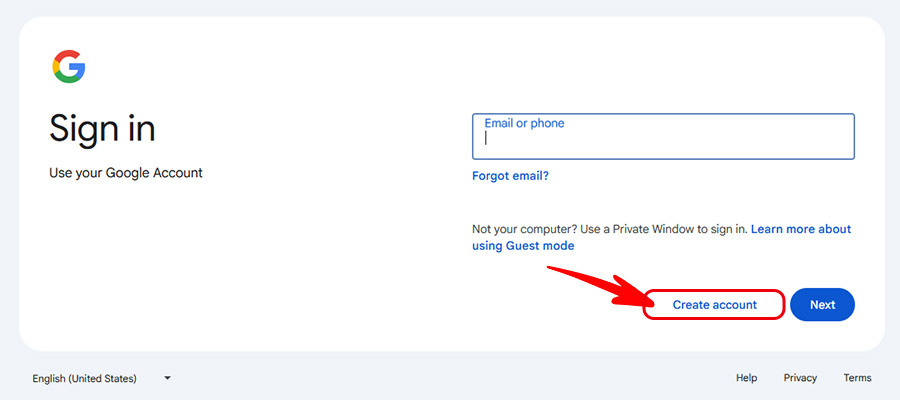
To learn how to create a Gmail on a computer, it is enough to search for the site address accounts.google.com in Google.
🔶 In the opened page, click on the "Create Account" button.
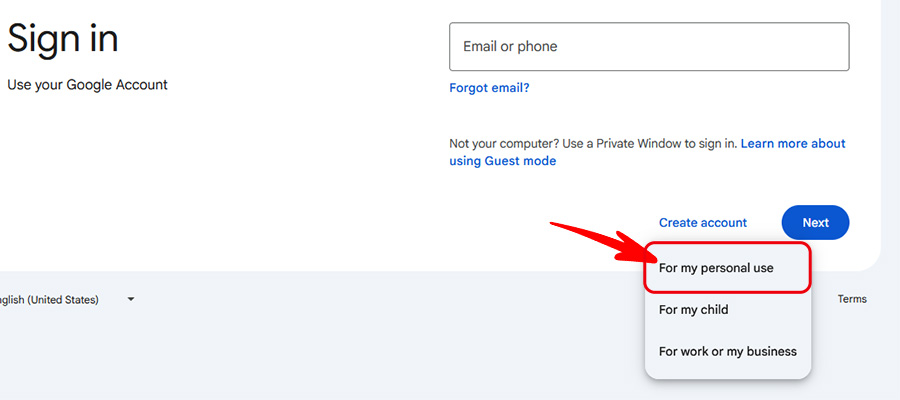
🔶 Now, in the menu that opens, click on the "For my personal use" option.
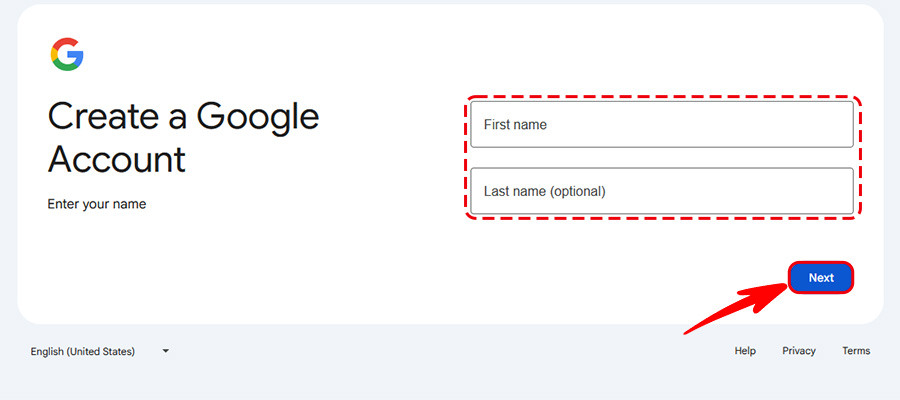
🔶 In this section, Google asks you for your first and last name; enter your details and go to the next page.
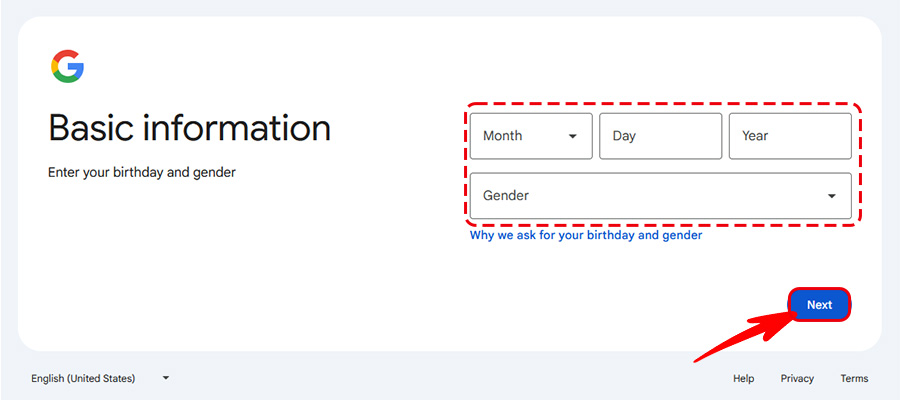
🔶 Now, in this section, you must enter your date of birth.
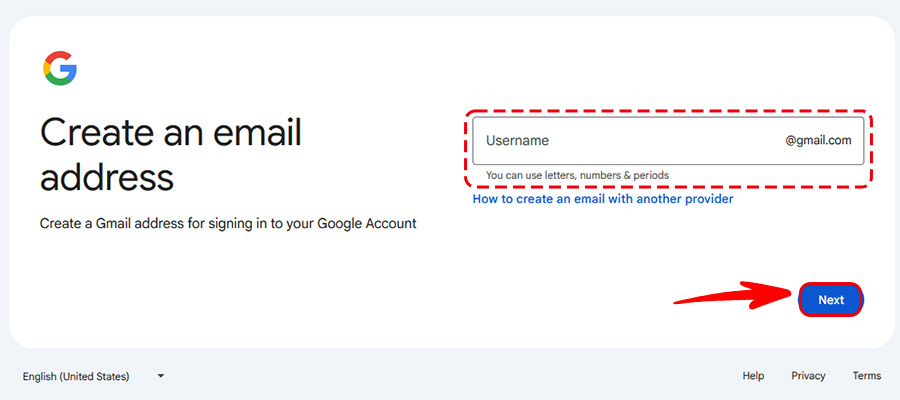
🔶 Choose a desired username and go to the next page.
Use your real first and last name and try, if your email is completely personal, to set the username according to your name as well.
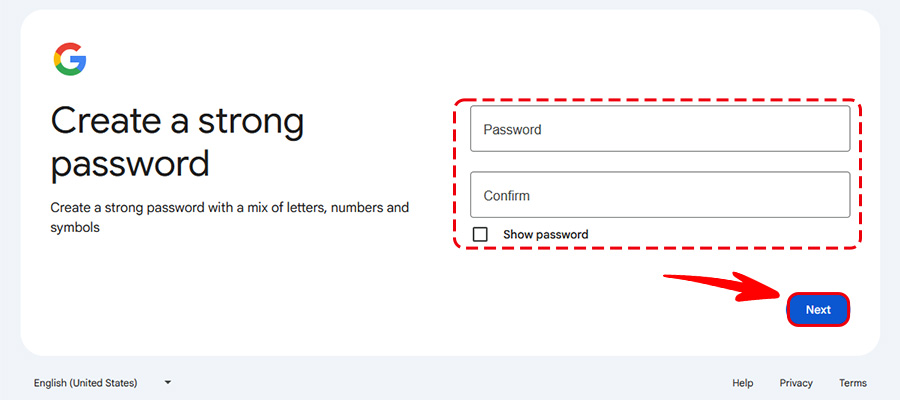
🔶 Now you must choose a password for your account; after determining the password, click on Next to complete your account creation process.
⚠️ Note: Your password is the key to entering your account, so use a strong and secure password. To create strong passwords, you can use password generator services like Google.
📌 Be sure to write down your password in a place where it won't be forgotten.
📌 Do not give your Gmail password to anyone. Because by having the password, a person has access to all your services that use Google.
💡 Tip: In the next step, Google usually asks for a mobile number; if you do not wish to add a mobile number to your Gmail account, click on the "Skip" option.
Creating Gmail on a phone
1️⃣ Enter the "Settings" of the phone.
2️⃣ Find the "Accounts" section and press "Add Account".
3️⃣ Select the "Google" logo.
From here on, the steps are exactly similar to creating an email on a computer.
If you have used a Gmail account before and now want to use that same account, you can use the guide on how to log in to a Gmail account on another phone.
Yahoo Email Creation Tutorial (Yahoo)
- Go to the site login.yahoo.com/account/create.
- A form will appear where you must fill in your name and details.
⚠️ Note: Yahoo is sensitive to mobile numbers and you must enter a valid number to receive a confirmation code.
Outlook Email Creation Tutorial (Outlook)
🟠 To create an Outlook email, enter the site outlook.live.com.
🟠 Press the "Create free account" button.
🟠Choose a username (you can choose between outlook.com or hotmail.com domains).
🟠 Set a password and that's it! Microsoft usually has simpler steps compared to Google.
Creating Gmail without a phone number
If you want Google not to ask you for a number, the best way is to act through the Android phone settings (the same method above). In many cases, Google makes entering the number "optional" on mobile phones, and you can create an account without a SIM card.
How to create a new email on iPhone (iOS)?
Many iPhone users think creating an email on an iPhone is complicated, but it is not like that at all. You can easily add or create various emails (Gmail, Yahoo, etc.) on your phone. Procedure:
- Enter the "Settings" of the iPhone.
- Go to the "Apps" section and then "Mail" (in older iOS versions, the "Passwords & Accounts" section).
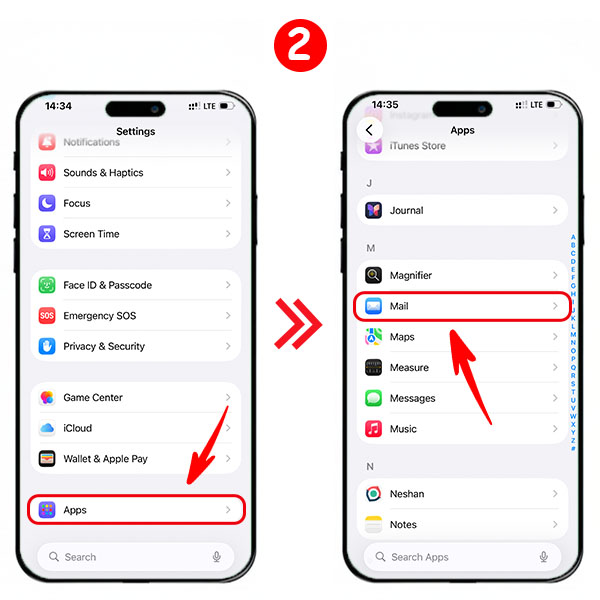
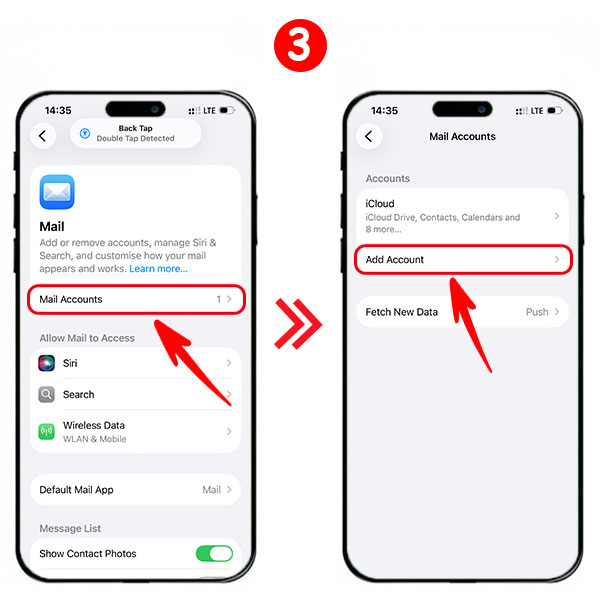
- In this section, tap on the "Mail Accounts" option and in the opened page, select the "Add Account" option.
- On this page, you should tap on the "choose from a list" option so that the page of different email services is displayed to you.
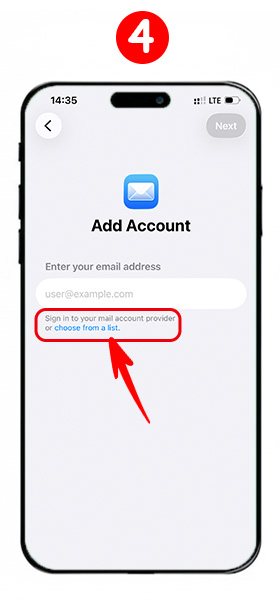
- Now you see a list of services (Google, Yahoo, Outlook, etc.).
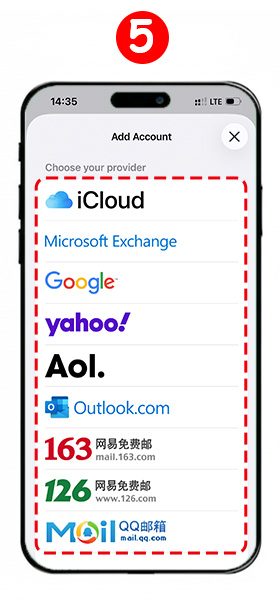
- Tap on the desired service (for example, Google). In the page that opens, press the "Create account" option so that the creation steps are followed exactly like the desktop browser.
Private and Secure Email Services
You might not know that there are specialized services focused entirely on privacy and encryption. These services are a great option for professional work or for those who are worried about data tracking. Among the most famous ones, we can mention ProtonMail, Tutanota, and Zoho Mail.
🔷 Storage Space: Usually, they provide between 500 MB to 2 GB of free space.
🔷 How to register: Some of them (like ProtonMail) do not even require a phone number for registration to ensure complete anonymity, and their security steps are more advanced than Gmail. In return, your mind is at ease regarding data privacy.
What is a temporary email?
Has it ever happened that you were forced to register on a site to download a file and didn't want to give your main email? This is where "Temporary Email" comes to your rescue. One-time email creation services (Fake Email) give you an email address that is only valid for 10 minutes or a few hours. You copy the email, register on the destination site, get the confirmation code, and that's it! After that, the email is automatically deleted and your main inbox won't be full of advertisements. (You can use Telegram bots or sites like TempMail).
Security tips for creating an email
Conclusion
Creating an email is the first brick in the wall of your digital life. Our suggestion is to definitely have one main Gmail for important tasks and your phone, and a second email (like Yahoo or Outlook) for registering on miscellaneous sites. Remember, the email password is the key to your digital home; do not choose it simply!
Frequently Asked Questions (FAQ)
Yes. If you want Google not to ask you for a number, the best way is to act through your smartphone settings. In many cases, Google makes entering the phone number "optional" and you can click the "Skip" button.
Email is the electronic mail technology itself (like the "address of a place"), while Gmail is a service provider created by Google (like the "postman" delivering the mail).
You should go to the login page and click on "Forgot password." If you have already set a recovery email or a phone number, a code will be sent to you to create a new password.
If you are looking for high-end encryption and total privacy, ProtonMail is the best option. However, for everyday ease of use, large storage, and full synchronization with your phone, Gmail remains the top choice globally.

Read the latest news about technology, social media platform and lifestyle in this section.

Learn How to do anything through by step by step tutorials and photo guides in this section.

Tips and Tricks and social media hacks are posted in this section regularly to improve your experience when using technology.

Staff management It is a key part of human resource management. Staff management strategies refers to organizing numerous operations so that actions contribute to the company's success. Learn all you need to know about supervising and guiding the employees for efficiency in performance in the staff management section.

Learn about online safety rules and what not to do on the internet by reading the articles of this section.

Learn how to root your Android smart phone with step by step tutorials and photo guides.

Discover regular and free tutorials and start learning or improving your skills in using technology and social media platforms.

You can download drivers and programs needed for rooting and changing the ROM of Android phones and other devices from this section.

In this section, discover the latest methods of making money online using the internet and mobile phones.

Read the articles in this section, stay informed about the latest and most profitable cryptocurrency airdrops and how to claim them.

The tutorial for installing & activating the AnyControl application on devices with various models is located in this section